
1. Confirm both apps are on v1.3.4 or later
Make sure your MoodyWatch app on both Apple Watch and iPhone is on 1.3.4 or later.
How to check
- iPhone: Settings → About → About MoodyWatch
- Watch: Top-left Settings → scroll to the bottom
If the watch version is behind
If your iPhone app is on 1.3.4+ but the watch version is still behind, you can:
- Wait for the system to auto-update
- Or remove the watch app and reinstall it from the Watch app on iPhone
- Install and update over Wi-Fi for best results
2. Configure a custom theme
Once both sides are on 1.3.4 or later, you can start setting up a custom theme.
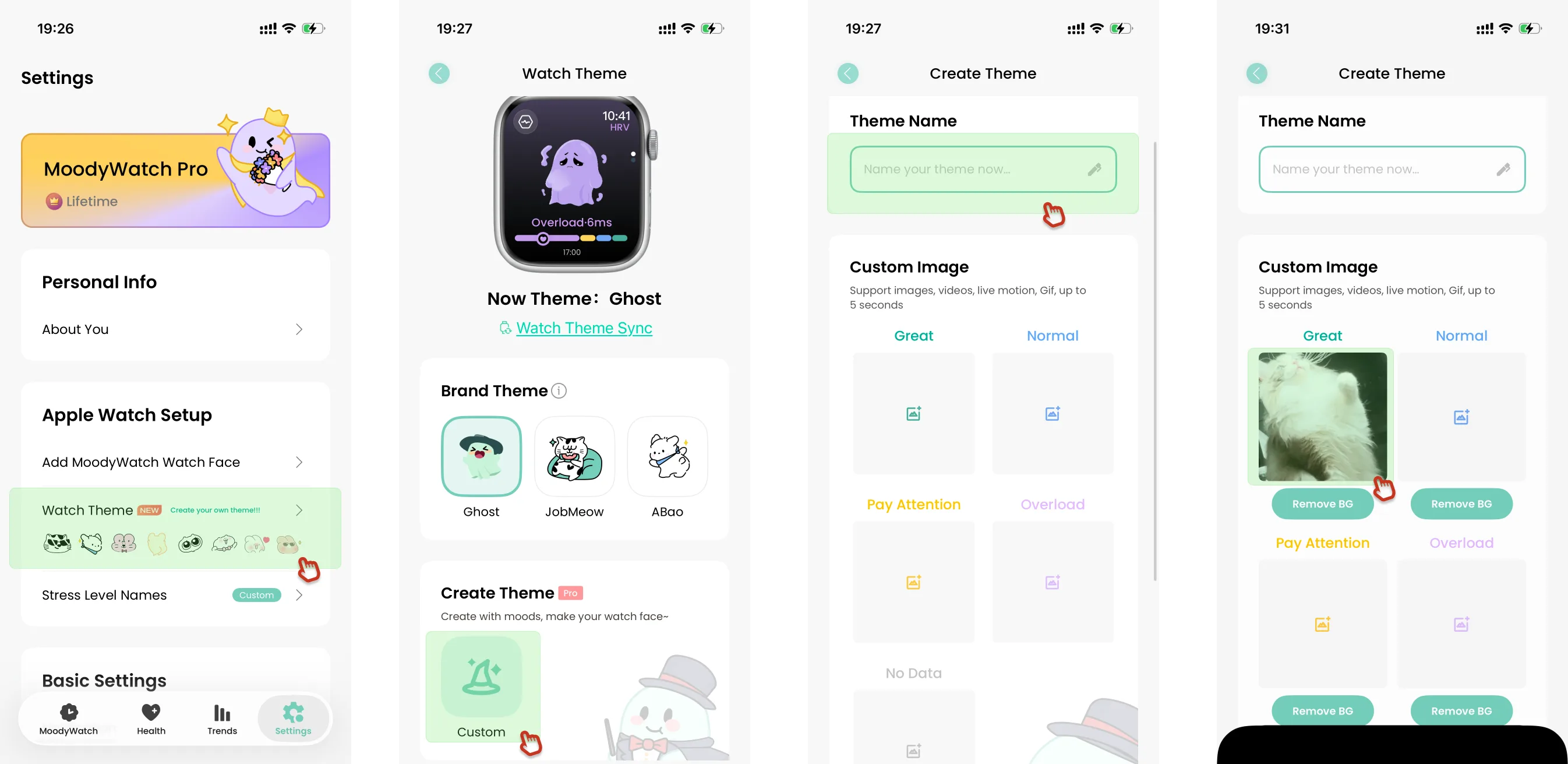
Step 1: Add a custom theme
Go to Settings → Custom Themes → Edit custom theme. Enter a name (required) and add images, videos, GIFs, or live photos from your library.
Note: The custom theme comes with a built-in "background removal" feature, but it only supports still images. Video / GIF / live photos must be 5 seconds or shorter.
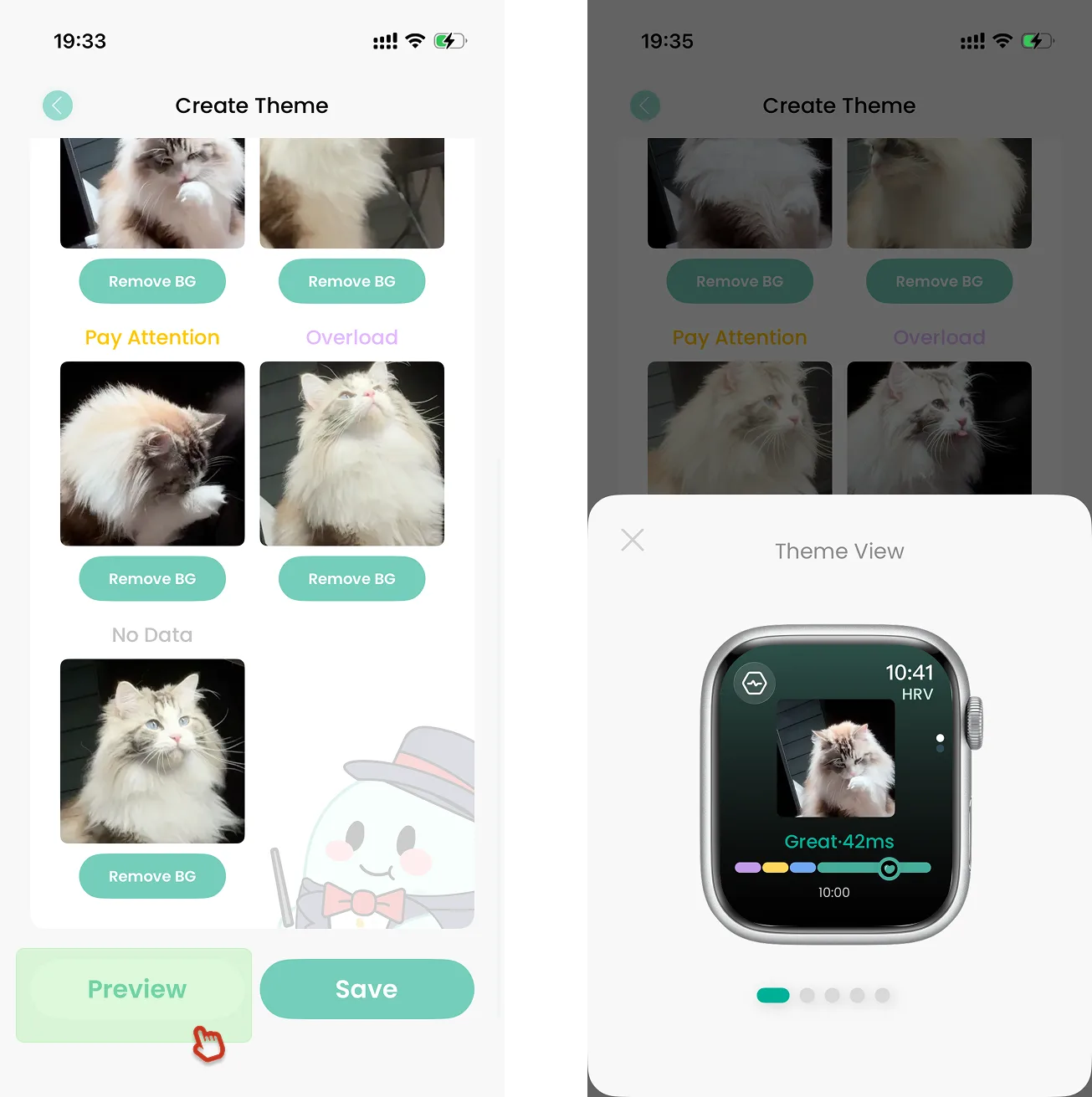
Step 2: Preview
After uploading media for all five states and setting a name, tap Preview. The system cycles through the content to simulate how it looks on Apple Watch so you can confirm it before saving.
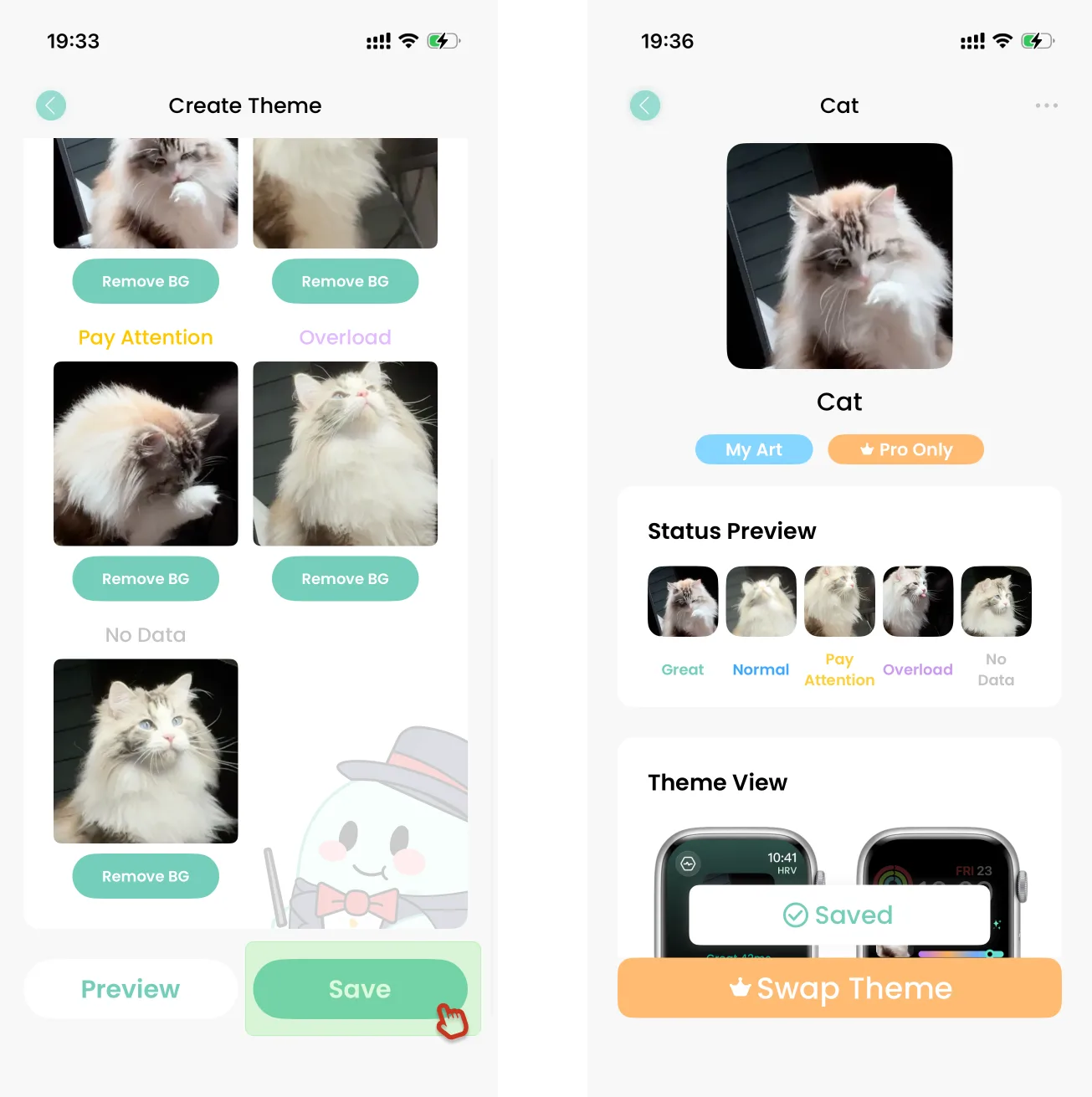
Step 3: Save
When the media looks right, tap Save. You'll see a success message — that's it.
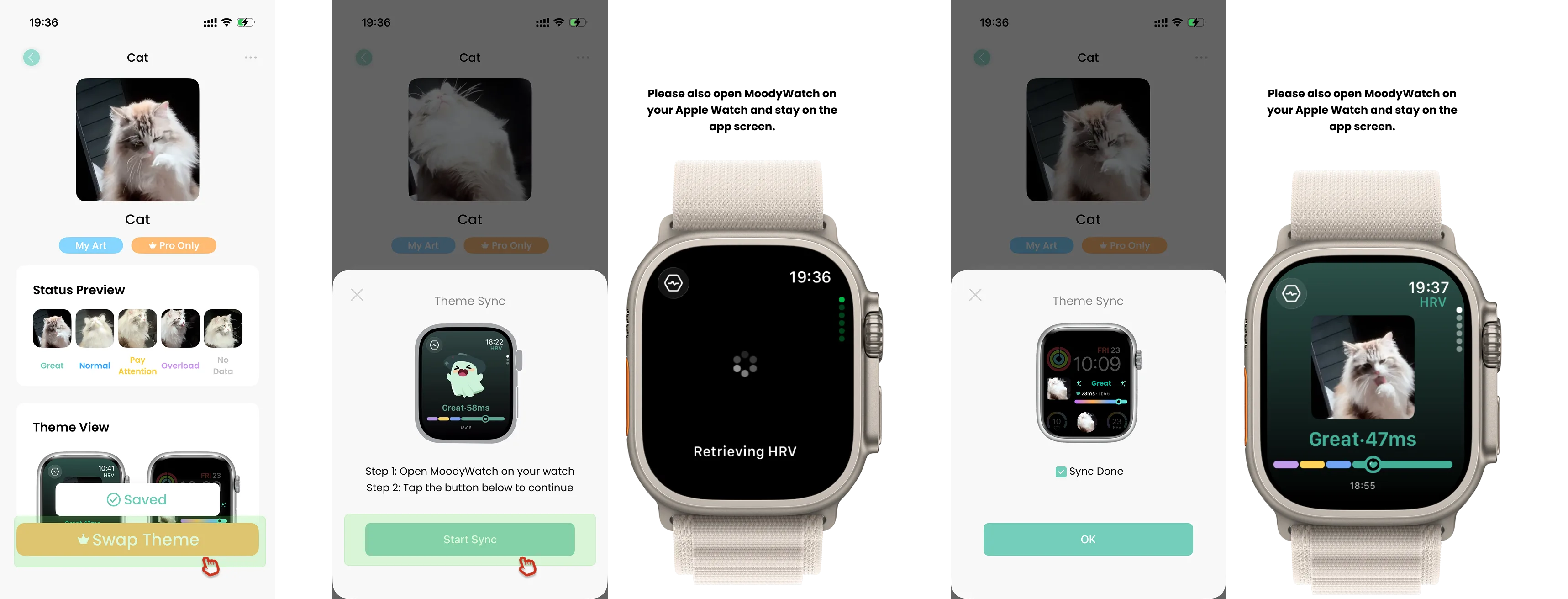
Step 4: Sync to Apple Watch
Tap Sync Theme → Start Sync → wait for the success message. During sync:
- Keep MoodyWatch open on iPhone
- Keep MoodyWatch open on Apple Watch
- Stay on the MoodyWatch page on both sides — don't exit
Phone says done, watch still loading?
If the iPhone side shows "sync complete" but the watch is still loading, don't rush to close the app. A few minutes of delay between the two is normal.
What to do: keep both open, wait a few minutes, and the watch usually finishes shortly after.
If sync still hasn't completed after 10 minutes, try:
- Close MoodyWatch on both sides
- Reopen the app
- Run sync again