
1. Confirm iPhone and Apple Watch versions match
Before setting custom stress labels, make sure:
- MoodyWatch on iPhone and Apple Watch are on the same version
- iPhone and Apple Watch are connected
- The app opens normally on both
2. Set custom stress labels
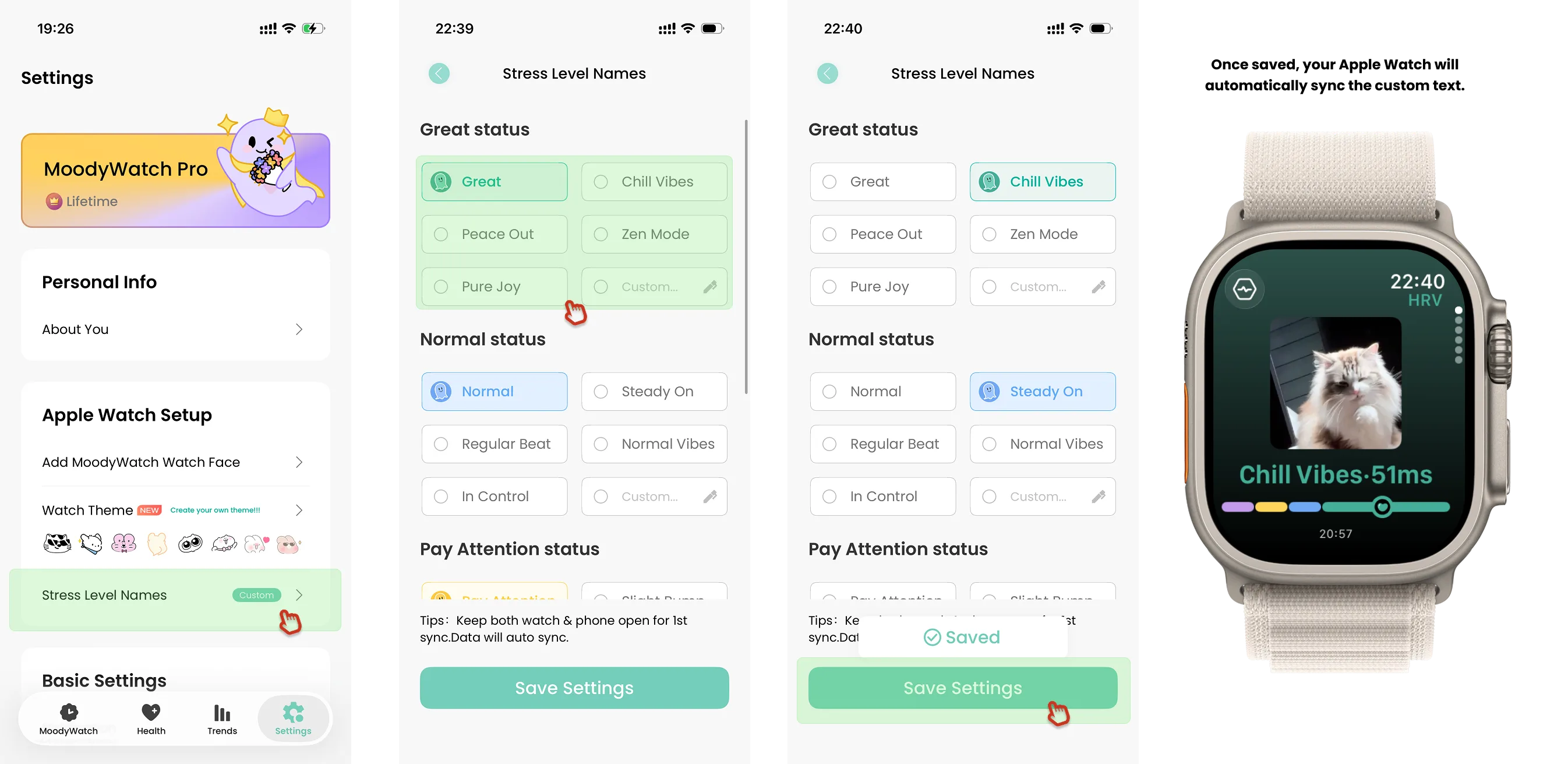
- Tap Settings → Customize Stress Level Labels
- Pick one of the preset labels, or write your own
- Tap save to store and sync
- Once you see the sync-success message, Apple Watch has also received the new labels
3. If Apple Watch hasn't picked up the new labels yet
Normally the custom labels sync automatically. If they don't, do the following:
Open MoodyWatch on both iPhone and Apple Watch and keep them on screen. On Apple Watch, tap Top-left Settings → Sync Personalization.
Tips during sync
- Keep MoodyWatch open on both iPhone and Apple Watch
- Stay on the MoodyWatch page on Apple Watch
- Keep the devices connected
- Wait a few minutes after sync for both sides to refresh
4. If it still doesn't take effect after sync
If the new label doesn't show up after some time, check in order:
Check that versions match
Make sure iPhone and Apple Watch are on the same MoodyWatch version and both support this feature.
Check the connection
- Bluetooth on iPhone is on
- Apple Watch is paired and connected to iPhone
- The Watch app shows the device as connected
Trigger personalization sync manually
On Apple Watch go to Top-left Settings → Sync Personalization and run it again.
Keep both apps open for a few minutes
Sync can lag slightly. Don't close the apps right away — wait a bit before checking the watch face.
Restart and retry
If nothing works yet, restart iPhone and Apple Watch, reopen MoodyWatch on both sides, and sync again.